
Virgin Media offers different routers with its broadband packages, including the Hub 3, Hub 4, Hub 5 and Hub 5x. The Hub 5 and Hub 5x are the newest models.
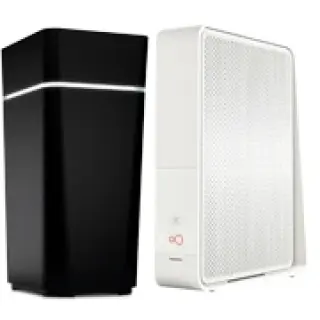
Which one you receive depends on the type of broadband connection at your premises:
- Homes on Virgin’s cable network (DOCSIS 3.1) usually get the Hub 5.
- Homes on Virgin’s full fibre network (XGS-PON) get the Hub 5x.
Both hubs offer Wi-Fi 6, app-based controls and compatibility with Virgin’s mesh add-on (WiFi Max). The key differences are how they connect to the network and the Ethernet ports they include.
In this guide
Quick Specs at a Glance
Hub 5 (Cable – DOCSIS 3.1)
- Wi-Fi 6, dual-band (2.4GHz 3×3, 5GHz 4×4)
- 1x 2.5Gbps Ethernet port
- 3x 1Gbps Ethernet ports
- Compatible with WiFi Max mesh pods
- Coaxial cable input
- Compatible with WiFi Max mesh pods
Hub 5x (Full Fibre – XGS-PON):
- Wi-Fi 6, dual-band (2.4GHz 3×3, 5GHz 4×4)
- 1x 10Gbps Ethernet port
- 3x 1Gbps Ethernet ports
- Optical WAN port (no coax)
- Compatible with WiFi Max mesh pods
Both hubs include guest Wi-Fi, WPS pairing, and Virgin’s Intelligent WiFi features through the Virgin Media Connect app.
Compare Virgin Media Broadband Deals
Which Hub Do You Get With Which Plan?
Your hub depends on the network type at your premises. If you’re on coaxial cable, you’ll get the Hub 5. If you’re on Virgin’s newer fibre-only lines, you’ll get the Hub 5x.
As for broadband packages:
- M125, M250, M350, M500, and Gig1: These cable broadband packages generally include the Hub 5. Some older customers on entry-level plans may still receive the Hub 3, but this is becoming less common.
- Gig2 (Full Fibre): This plan comes with the Hub 5x router with the 10Gbps port.
As with most broadband setups, your actual Wi-Fi speed won’t always hit the maximum speed specified for the plan. Devices closer to the router will perform better. For the most reliable results on Gig1 or Gig2, use a wired connection.
Day-to-Day Wi-Fi Performance
Both hubs use Wi-Fi 6, which usually improves performance on modern devices and helps your connection stay consistent when lots of devices use Wi-Fi at the same time. You’ll notice quicker page loads and more consistent video streaming on phones, laptops, and tablets that support Wi-Fi 6.
Wi-Fi speed still depends on:
- the device (Wi-Fi 6 devices usually perform better than Wi-Fi 5 ones)
- distance from the hub or pod
- thick walls and interference
For the most consistent speeds on faster packages, use Ethernet for your main devices where you can.
Virgin Media Hub 5 Ethernet ports
- Hub 5 includes one 2.5Gbps Ethernet port and three 1Gbps ports.
- Hub 5x includes one 10Gbps Ethernet port and three 1Gbps ports.
These ports give enough bandwidth for ultra-fast plans like Gig1 or Gig2, especially if you’re using network storage or connecting to high-speed desktops or consoles.
One common issue: many laptops, consoles, mesh systems and network switches are still limited to 1Gbps. If any part of your wired setup is 1Gbps-only, speed tests can top out at about 1Gbps even when your broadband package is faster.
Virgin Media Hub 5 bridge mode (modem mode)
The bridge mode or modem modem is useful if you want to use your own router or mesh system as the main router.
- Hub 5 offers modem mode.
- When you switch modem mode on, only one Ethernet port stays active for your own router.
- Just make sure to use the correct port (usually the first LAN port), and follow the correct reboot steps so that your own router gets assigned an IP address.
- Troubleshooting tip: If you’re getting a 1Gbps cap on speed tests, even though you’re using the faster ports, check every link in your setup. This includes switches, Ethernet cables, and the WAN port on your own router. Older Cat5 cables or 1Gbps switches could be the bottleneck.
If you can’t access the hub settings after switching modem mode on, it’s often because your router changes the local IP range. If that happens, connect a laptop directly to the hub briefly so you can confirm the status page and settings.
Virgin Media Hub 5x modem mode
Virgin does not offer a widely available, fully supported modem mode option on the Hub 5x across the UK full fibre service.
Some advanced users share workarounds online, but they can be inconsistent and may break after firmware changes. For most people who want to use their own kit, the practical options are:
- Run your third-party system in access point mode, with the Hub 5x left as the router.
- Use WiFi Max pods if you mainly want better Wi-Fi coverage rather than advanced routing features.
Virgin Media Hub 5x firmware updates
Virgin rolls out hub firmware automatically. Updates can arrive in stages, so nearby homes can be on different versions for a while.
If you want to check the version:
- Log into the hub settings in a browser (often 192.168.0.1 in router mode).
- Look for a software version field in the status or info pages.
If you notice new issues after an update (random dropouts, devices refusing to reconnect, odd Wi-Fi behaviour):
- Restart the hub from the Connect app or power cycle it.
- Check Virgin’s status tools for local faults.
- If it continues, contact Virgin and quote the hub model and the software version shown in the settings page.
Virgin Media WiFi Max Guarantee
WiFi Max is Virgin’s premium mesh service that uses plug-in pods to extend coverage. The setup is done through the Virgin Media Connect app and the entire network runs on one SSID, so you don’t need to manually switch between signals.
Virgin guarantees 30Mbps in every room. If you don’t get that, they’ll send up to three pods to improve coverage. If that still doesn’t fix it, you’ll receive £100 credit. That’s a clear commitment, which most broadband providers don’t offer.
Pod placement matters. Keep them in open areas and avoid stacking them too close to the hub or to each other. Each pod should have a good line of sight to the next point in your home.
Setup Process – Cable vs Full Fibre
Virgin Media uses two different installation routes, based on the connection type at your premises:
- Hub 5 connects over Virgin’s cable network (DOCSIS) using a coaxial wall socket.
- Hub 5x connects over Virgin’s full fibre network (XGS-PON) using an optical fibre lead.
Hub 5 installation (Cable / DOCSIS)
Cable installs use QuickStart when your premises already has a Virgin Media wall socket in place and the line is serviceable. The QuickStart is a plug-in setup with no drilling.
Before you plug anything in
Place the hub where it can deliver the best Wi-Fi:
- Keep it upright and out in the open.
- Leave space around it and keep it at least 1 metre away from things that interfere with Wi-Fi, such as fish tanks and certain electronics (for example baby monitors and cordless phones).
- Point the hub’s lights into the room so the signal spreads across your home more evenly.
Step-by-step setup
- Connect the coaxial cable
If you’re replacing an older Virgin hub, switch the old hub off at the wall first.
- Unscrew the coaxial cable from your old hub.
- Screw the coaxial cable into the Hub 5’s coax connector.
- Tighten it firmly. Virgin supplies a spanner in many kits to help you secure the connector.
- Connect the power
- Plug the power adapter into the hub, then switch it on at the mains.
- Leave the hub to finish setup
Virgin’s guidance for QuickStart installs allows about 30 minutes for the hub to complete its setup. You’re not actively doing anything for most of that time, as the hub configures itself. - Check the hub light
For Hub 5, the single front light tells you the current status. A solid white light indicates the hub is powered and ready. - Connect to Wi-Fi and finish setup in the app
- Your Wi-Fi network name and password are printed on the hub.
- Connect your phone or laptop, then use the Virgin Media Connect app to manage Wi-Fi settings and run a home scan.
Activation timing (QuickStart)
Your account activation is automated after your QuickStart kit collection or delivery, unless you complete setup earlier. For existing customers upgrading equipment or services, activation is also automated after delivery unless setup is completed sooner.
Hub 5x installation (Full fibre / XGS-PON)
Full fibre installs use an engineer visit. The QuickStart is not available with full fibre.
What happens during a full fibre install
- When you place your order, you choose an installation day and time slot.
- An adult aged 18+ must be in the property for the duration of the appointment slot, otherwise the install cannot be completed.
- Virgin carries out external preparation work in advance so the outside cabling is ready. This work happens outside, so you don’t need to be at home for it.
- On installation day, the engineer runs the internal cabling to the agreed location and fits any required wall points.
- If the cable route needs it, the engineer drills small holes to get the cable to the right place. If you rent your home, check your tenancy rules before the appointment.
- Virgin states the appointment usually takes between 30 minutes and 2 hours, depending on the services being installed.
Connecting the Hub 5x
Once the fibre line is brought into the property and connected, the Hub 5x connects via an optical fibre lead into the hub’s fibre port (there’s no coax connection). The hub then comes online when the fibre signal is active.
Wi-Fi setup follows the same approach as Hub 5:
- Use the Wi-Fi details printed on the hub to connect.
- Use the Virgin Media Connect app to manage settings and run checks.
Adding WiFi Max pods after setup
If you take WiFi Max, Virgin uses the Connect app to measure Wi-Fi performance room by room.
- Run the home scan in the app. Virgin says it checks your rooms and then reports the result.
- If the scan shows a room below 30Mbps download speed, Virgin provides a WiFi pod to improve coverage.
- Virgin provides up to three pods, requested one at a time, based on the results.
Pros, Cons, and What’s Missing
Pros
- Wi-Fi 6 offers better performance on modern devices.
- Multi-gig Ethernet is available on both hubs (2.5Gbps on Hub 5, 10Gbps on Hub 5x).
- WiFi Max adds pods plus a clear minimum speed promise.
- Setup and management through the Connect app is straightforward.
Cons:
- Hub 5x does not offer a standard, widely supported modem mode option, which limits advanced third-party router setups.
- Some customers hit speed caps because of their own networking gear. You’ll need Cat6 or better cables and multi-gig compatible switches to get full speeds.
What’s not included:
- There’s no Wi-Fi 6E or Wi-Fi 7. If you want access to the 6GHz band or the latest low-latency features, you’ll need a third-party mesh system.
- Advanced users may also prefer a third-party router for deeper controls, such as running a VPN server at home.
- There’s no DECT support for landlines, unlike BT’s Smart Hub 2.
How It Stacks Up Against Other ISP Routers
BT Smart Hub 2
BT Smart Hub 2 is a Wi-Fi 5 router. That puts it a generation behind Virgin’s Hub 5 and Hub 5x on wireless spec, because both Virgin hubs use Wi-Fi 6.
On wired connections, BT Smart Hub 2 uses gigabit Ethernet ports. That means wired devices top out at 1Gbps per port, while Virgin’s Hub 5 includes a 2.5Gbps Ethernet port and Hub 5x includes a 10Gbps Ethernet port. If you take a multi-gig broadband package and you also have multi-gig home networking gear, Virgin’s hubs give you more wired capacity inside the home.
BT’s big plus is phone features. Smart Hub 2 includes built-in DECT, which links neatly with BT Digital Voice handsets. Virgin’s hubs do not include DECT, so they don’t replace a cordless phone base station in the same way.
Sky Max Hub and Sky Gigafast+ Hub
Sky offers Sky Max Hub and WiFi Hub 7 routers with its full fibre packages.
Sky’s Sky WiFi Max upgrade comes with the Sky Max Hub, which uses Wi-Fi 6. On Wi-Fi spec alone, that puts it in the same generation as Virgin’s Hub 5 and Hub 5x.
The difference is in the extras around it. Sky WiFi Max focuses heavily on app controls and a Wi-Fi guarantee with money back if it cannot meet the minimum room-by-room speed after checks. The guaranteed minimum depends on the broadband package, with different minimum figures for different tiers.
On wired connectivity, Sky’s Max Hub uses gigabit Ethernet, while Virgin’s Hub 5 and Hub 5x include multi-gig Ethernet for faster wired links.
Sky now also provides a separate Wi-Fi 7 hub on its top-end Full Fibre Gigafast+ packages. That matters for comparison because Sky’s newest hub goes beyond Virgin’s Wi-Fi 6 spec, while Virgin’s hubs still lead on multi-gig ports across a wider range (Hub 5’s 2.5Gbps port on cable, and Hub 5x’s 10Gbps port on Virgin full fibre).
Vodafone Ultra Hub 7
Vodafone Pro 3 package includes the Ultra Hub 7 router, which uses Wi-Fi 7. That makes it the most modern Wi-Fi spec in this comparison. Vodafone also includes a 4G Broadband Back-up dongle, which keeps you online using mobile data if the fixed line drops, plus mesh boosters as part of the Pro bundle.
On the wired side, Ultra Hub 7 focuses on 2.5Gbps Ethernet rather than a 10Gbps port. That’s still a big step up from gigabit-only routers, but Virgin’s Hub 5x goes further with a 10Gbps Ethernet port.
Vodafone offers Ultra Hub 7 as Wi-Fi 7, but its own product information describes it using 2.4GHz and 5GHz bands, rather than a 6GHz band.
Where Virgin’s Hub 5 and Hub 5x still stand out
If you compare the hardware on its own:
- Hub 5x is the more advanced Virgin option for wired networking, thanks to the 10Gbps Ethernet port.
- Hub 5 is the better choice than most Wi-Fi 5 ISP routers, mainly because it uses Wi-Fi 6 and includes a 2.5Gbps Ethernet port.
Verdict
If you’re a Virgin Media broadband customer, the Hub 5 and Hub 5x are both good routers for their respective networks. Wi-Fi 6 gives strong wireless performance, and the faster Ethernet ports provide the speeds needed for streaming, gaming, and heavy downloads.
For most households, the default setup plus WiFi Max pods gives more than enough coverage and consistency. If you’re on Gig1 or Gig2, plugging in your main devices via Ethernet makes a significant difference.
Hub 5 offers modem mode, so it works well if you want your own router to run the network. Hub 5x does not provide modem mode on Virgin’s full fibre connection type, so it is less flexible.
There’s no Wi-Fi 6E or Wi-Fi 7 onboard yet, but unless you have a lot of next-gen devices, you probably won’t miss them. If you want the absolute cutting edge, a third-party mesh kit is the next step.
FAQs
Which router will I receive from Virgin Media?
Virgin Media supplies the hub based on the connection type at your premises.
You get Hub 5 on the cable network (DOCSIS) using a coaxial wall socket. You get Hub 5x on Virgin’s full fibre network (XGS-PON) using an optical fibre connection.
Can I use modem mode with the Hub 5?
Yes. Hub 5 includes modem mode, which lets you use your own router as the main router.
When you switch modem mode on, one Ethernet port stays active for your router. After changing the setting, restart the hub and your router so the connection picks up correctly.
Does the Hub 5x support modem mode?
No. Hub 5x does not provide a widely available, fully supported modem mode option on Virgin’s UK full fibre service.
If you use your own kit, access point mode is the usual workaround, with Hub 5x left as the router.
What is WiFi Max and how does it work?
WiFi Max is Virgin Media’s mesh Wi-Fi add-on. It uses plug-in pods to extend coverage and keeps everything on one Wi-Fi network name.
Virgin guarantees at least 30Mbps download speed in every room. If a room falls below that level, Virgin provides up to three pods. If the minimum still isn’t met after the pods, Virgin applies £100 credit.
How fast is Wi-Fi on the Hub 5 and Hub 5x?
Wi-Fi speed depends on your device, distance from the hub, and how many walls the signal passes through. Hub 5 and Hub 5x both use Wi-Fi 6, but they pair with different broadband products.
Hub 5 on Gig1 can deliver very high Wi-Fi speeds at short range on Wi-Fi 6 devices. A set of Gig1 tests recorded:
- 1,083–1,115Mbps download speed to the hub (hub-to-network)
- 1,097Mbps download speed on a wired device using the Hub 5’s 2.5Gbps Ethernet port
- 738–819Mbps download speed on a Wi-Fi 6 laptop in the same room as the hub
On M500, the line’s average download speed is 516Mbps. In a strong 5GHz Wi-Fi signal area, a Wi-Fi 6 phone or laptop can reach the full 516Mbps.
Hub 5x comes with Gig2 on Virgin’s full fibre network. Gig2 offers much more bandwidth into the property, but one Wi-Fi device usually won’t show 2Gbps on a speed test because most Wi-Fi 6 devices top out well below that.
To measure Gig2 properly on one device, use Ethernet. Hub 5x includes a 10Gbps Ethernet port for multi-gig equipment. The other three Ethernet ports run at 1Gbps.
Where should I place the router and mesh pods?
Put the hub in an open area and keep it out of cupboards or TV cabinets. This improves Wi-Fi spread and reduces interference.
Place pods part-way between the hub and the rooms with weaker Wi-Fi, using hallways and doorways as the main route for the signal. Use the Virgin Media Connect app to test room-by-room speeds and adjust placement.