
Vodafone offers a small set of apps and online tools that help with most home broadband tasks, from checking your Wi-Fi to setting parental controls. The key is knowing which app does what, because Vodafone splits router and Wi-Fi controls from billing and account management.
This guide walks you through the main Vodafone broadband apps, how to set them up, and how to use the most useful features day to day. At the end, you’ll find a comparison with similar apps from other UK providers.
In this guide:
Which Vodafone app should you use?
Vodafone uses three main app experiences for home broadband customers:
- Vodafone Broadband app: Wi-Fi setup, router controls, connected devices, diagnostics, and some Pro plan features
- Secure Net app (and Secure Net web portal): online protection and parental controls for Vodafone’s Secure Net Home
- My Vodafone app: account management such as bills, payments, add-ons and general account actions
Depending on your broadband package and router, you may also see Who’s Home inside the Vodafone Broadband app.
Vodafone Broadband app
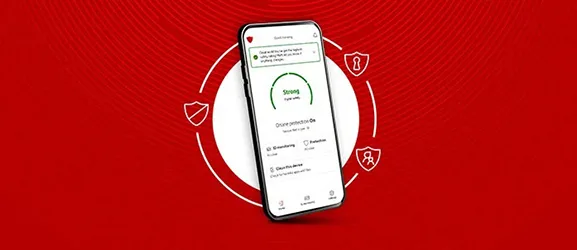
If you want to change your Wi-Fi name and password, see which devices are connected, or run Vodafone’s checks when your connection feels slow, start here.
What you can do in the Vodafone Broadband app
Vodafone uses the Broadband app for everyday home network tasks such as:
- Checking your connectivity and looking for common issues
- Running a speed check
- Seeing which devices are connected
- Pausing internet access for a device
- Sharing your Wi-Fi details with someone in your home
- Changing Wi-Fi settings such as the network name and password
- Using guided troubleshooting tools on certain Vodafone routers
Some features appear only on certain routers. For example, Vodafone highlights Network Assistance for customers using the Ultra Hub.
Before you start
A few basics make setup smoother:
- Install the Vodafone Broadband app on your phone or tablet.
- Connect your phone to your home Wi-Fi before you try to manage router settings.
- Keep your router switched on and connected to your broadband line.
- Make sure you have your Vodafone broadband account details to hand in case the app asks you to sign in.
Vodafone lists minimum device requirements for the Broadband app. If you use an older handset, check the app store listing and Vodafone’s help pages for the current minimum Android and iOS versions.
First-time setup: getting the app talking to your router
The first setup usually follows this pattern:
- Download the Vodafone Broadband app from your phone’s app store.
- Open the app and sign in if prompted.
- Connect your phone to your Vodafone Wi-Fi network.
- Follow the in-app steps to link the app to your router.
If the app cannot find your router, check that you are on the Vodafone Wi-Fi network, not mobile data. It also helps to switch off any VPN on your phone during setup.
Checking your Wi-Fi and broadband connection
When the internet feels slow or pages time out, the Broadband app’s connectivity checks can save time. You’ll usually see a clear status message and a set of next steps.
A good approach is:
- Run the app’s connectivity check first.
- If the app suggests a restart, reboot the router and wait a few minutes.
- Re-run the check after the router reconnects.
If you use an Ultra Hub and the app offers Network Assistance, use it. It can guide you through common Wi-Fi issues with prompts that are more practical than generic troubleshooting.
Viewing connected devices
The connected device list helps with three common problems:
- You suspect an unknown device has joined your Wi-Fi.
- Your broadband feels slow and you want to see what is online.
- You want to pause internet access on a child’s tablet, a games console, or a smart TV.
If a device name looks unfamiliar, it may still be one of yours. Many phones and smart gadgets show up with a manufacturer name rather than a friendly label.
Pausing internet access for a device
Pausing a device is one of the most useful app features, but it works best when you treat it as a network rule rather than a punishment tool.
A few practical tips:
- Pause works only if the device connects through your home Wi-Fi. It won’t affect mobile data on a phone.
- Some devices reconnect quickly after a pause ends, so expect a short delay rather than an instant switch.
- If a device uses both Wi-Fi and Ethernet, pausing Wi-Fi access may not stop the wired connection.
If pausing does not take effect, confirm the device is on your Wi-Fi and not connected to a neighbour’s extender or a guest network.
Sharing Wi-Fi details
The sharing tool helps when a guest needs to join your network or when you set up a new device and don’t want to read out a long password. It can be quicker and less error-prone than typing the password manually.
For security, share access only with people you trust, and change your password later if you shared it widely.
Changing Wi-Fi name and password
Changing your Wi-Fi name (SSID) and password can improve security and reduce confusion if you have multiple networks in range.
One easy way to do this is:
- Choose a unique Wi-Fi name you can recognise.
- Use a long password that you don’t reuse elsewhere.
- Update saved networks on your phones, tablets, and smart devices after the change.
Expect a short drop in connection while devices reconnect.
Turning Wi-Fi on or off
Sometimes you may want to switch Wi-Fi off briefly during troubleshooting or when you want to force devices onto a wired connection. The Broadband app can offer that control on certain setups.
If you switch Wi-Fi off, remember that smart speakers, smart plugs, cameras and similar devices will usually disconnect until Wi-Fi comes back on.
Who’s Home: arrival and departure alerts through your Wi-Fi
Who’s Home is a feature Vodafone offers through the Vodafone Broadband app on Vodafone Pro 3 broadband packages.
What Who’s Home does
Who’s Home sends alerts when a household member’s phone connects to your home Wi-Fi or disconnects from it. Vodafone treats “connects” as arriving home and “disconnects” as leaving.
This can be useful if:
- You want a simple arrival notification when children get home.
- You care for someone who lives with you and you want a quick prompt that their phone has joined the Wi-Fi.
What Who’s Home does not do
It does not track a person’s location in the way a GPS tracking app would. It relies on the phone connecting to your home Wi-Fi network.
That matters because the alert tells you about Wi-Fi connection status, not where someone is minute by minute.
What you need for Who’s Home
Vodafone ties Who’s Home to certain Vodafone routers and certain Vodafone broadband packages. In practice, that means you should expect it only if your Vodafone broadband package includes it and your Vodafone router model offers it.
Setting it up
You set it up in the Vodafone Broadband app, usually by adding household members and asking them to opt in. Once they opt in, the app can record connect and disconnect events for those devices.
Limitations you should know about
Who’s Home can be very handy, but it has a few technical limits:
- If a phone leaves home but keeps Wi-Fi connected for a short time, the “left” alert may come later than you expect.
- If a phone’s Wi-Fi is switched off, it won’t trigger arrival alerts until Wi-Fi reconnects.
- Some phones use MAC address randomisation, which can affect device recognition on some networks.
- If the Wi-Fi signal drops in parts of the home, the phone may disconnect and reconnect, which can create extra alerts.
If you see repeated alerts at the same time each day, check whether the phone switches between Wi-Fi and mobile data or enters a power saving mode that affects Wi-Fi.
Secure Net Home: online protection and parental controls
Vodafone’s Secure Net Home is a home broadband security add-on that you manage through the Secure Net app or the Secure Net web portal. Vodafone also links Secure Net Home with the Vodafone Broadband app for activation and account connection, depending on your package.
What Secure Net Home can do
Secure Net Home focuses on two areas:
- Online protection against known malicious sites and common threats
- Parental controls for filtering and family rules
Vodafone also includes extra tools such as a digital safety rating, and an Android-only cleaning tool in the Secure Net experience.
Getting started with Secure Net Home
The setup route depends on your Vodafone broadband package:
- Confirm Secure Net Home is available with your package.
- If Vodafone asks you to activate it through the Vodafone Broadband app, complete that step first.
- Download the Secure Net app and sign in with your Vodafone details.
- Use the Secure Net dashboard to manage your home broadband settings.
If you prefer a browser, Vodafone also offers a Secure Net web portal for account access and settings.
Setting parental controls that actually work in a busy home
Parental controls work best when you start simple, then tighten them over time.
A practical setup plan:
- Create a profile for each child.
- Assign the right devices to the right child profile.
- Set age-appropriate filtering.
- Add downtime schedules for homework, bedtime, or family meals.
Remember, parental controls applied on the home broadband service affect devices while they use your home Wi-Fi. If a child switches to mobile data on a phone, home broadband rules may not apply in the same way.
The digital safety rating and the cleaning tool
The digital safety rating gives you a straightforward view of how protected your setup looks, plus suggested actions you can take.
The cleaning tool is Android-only. Treat it as a device clean-up option rather than a replacement for regular updates and good password habits.
Turning Secure Net Home off
If you stop using it, Vodafone allows you to unsubscribe through the Secure Net app or the Secure Net web portal. That can be useful if you want to test a different parental control approach or if you change broadband package.
My Vodafone app
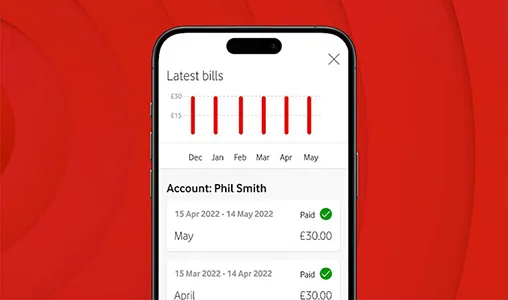
My Vodafone focuses on your Vodafone account rather than your home Wi-Fi settings.
Broadband customers often use it for:
- Viewing and paying bills
- Checking order or account details
- Managing add-ons and account preferences
If you need to change Wi-Fi settings, the Vodafone Broadband app remains the better place to start.
Common problems and quick fixes
The app cannot find the router
Try these steps in order:
- Connect your phone to your Vodafone Wi-Fi network.
- Switch off mobile data temporarily so your phone does not avoid Wi-Fi.
- Restart the router and wait a few minutes for it to reconnect.
- Close and reopen the app.
If you still cannot connect, check whether your phone runs a VPN or a privacy tool that blocks local network access.
Pausing a device does nothing
- Confirm the device is connected to your home Wi-Fi, not mobile data.
- Check whether the device also connects through Ethernet.
- Refresh the device list in the Broadband app and try again.
Speed checks look fine, but streaming still buffers
That often points to Wi-Fi coverage, not the broadband line itself.
A few practical changes help:
- Move the router away from thick walls and large metal objects.
- Keep it out of cupboards and away from the floor.
- If you have boosters or mesh units, place them where they still get a strong signal from the router.
Privacy basics: what the apps can see
Home broadband apps typically use technical network information to show connected devices and manage settings. That usually includes device identifiers such as a device’s network address and basic connection information.
If you use Who’s Home, the feature relies on a phone connecting and disconnecting from your home Wi-Fi. That makes it important to set expectations in your household, especially if more than one adult can see the alerts.
How Vodafone’s broadband apps compare with other UK providers
Vodafone covers the main bases with a dedicated router and Wi-Fi app, plus a separate security app and a separate account app. That approach compares well with most major providers, but the detail differs.
Virgin Media: Connect app
Virgin Media’s Connect app focuses on Wi-Fi management and diagnostics. It includes a home scan style feature, controls for Wi-Fi Pods, and device pausing. Like Vodafone’s Broadband app, it works best when your phone connects to your home Wi-Fi.
Virgin’s approach feels closest to Vodafone’s day-to-day Wi-Fi management, particularly if you use Wi-Fi extenders or pods.
BT: Whole Home Wi-Fi app and hub controls
BT has an app experience for Whole Home Wi-Fi, which gives you a dashboard view of devices, options to pause internet access, and extra features such as a guest network. That makes it useful if you use BT’s mesh discs to improve Wi-Fi coverage.
BT also offers hub-based controls through the Hub Manager in a web browser, including internet access controls. It feels more “router settings first” than Vodafone’s Broadband app, which keeps more common tasks in the app.
EE: EE app for hub and add-ons
EE pushes more broadband management through the EE app, including hub management and settings changes. EE also promotes add-ons and features such as Wi-Fi Optimiser and Wi-Fi extenders that you can manage through the app.
If you like the idea of activity prioritisation on your connection, EE’s approach can feel more hands-on than Vodafone’s.
Sky: My Sky app tools and Broadband Shield
Sky removed Sky Broadband Buddy in April 2023. Sky now leans on account-level tools like Sky Broadband Shield for online protection. Sky also offers Wi-Fi management features through the My Sky app for customers using Sky WiFi Max, including device controls such as pausing and scheduling downtime.
Sky’s setup can feel simpler if you only want filtering, but it can feel less direct if you want granular router controls in a dedicated router app.
TalkTalk: eero app on some packages, plus account-based security settings
TalkTalk uses the eero app for some full fibre and mesh setups, which gives you strong device and profile controls through eero’s interface. For network-level filtering, TalkTalk’s HomeSafe settings sit in your account area rather than a separate Wi-Fi management app.
If you already use eero hardware, TalkTalk’s approach can feel tidy. If you want one provider-branded app for everything, Vodafone’s split between Broadband app, Secure Net, and My Vodafone may still feel clearer.
How good are Vodafone broadband apps?
Vodafone’s Vodafone Broadband app gives you the core Wi-Fi controls most people actually use: connectivity checks, device lists, pausing access, and simple router setting changes. Secure Net Home adds a more advanced layer for online protection and parental controls, while My Vodafone keeps billing and account actions separate.
If you want one place to manage your home Wi-Fi without diving into a router web page, Vodafone’s setup is a good choice, especially on packages that include the extra Pro features such as Who’s Home.